
Quick answer
Use Git worktrees to give separate OpenCode tasks separate checkouts
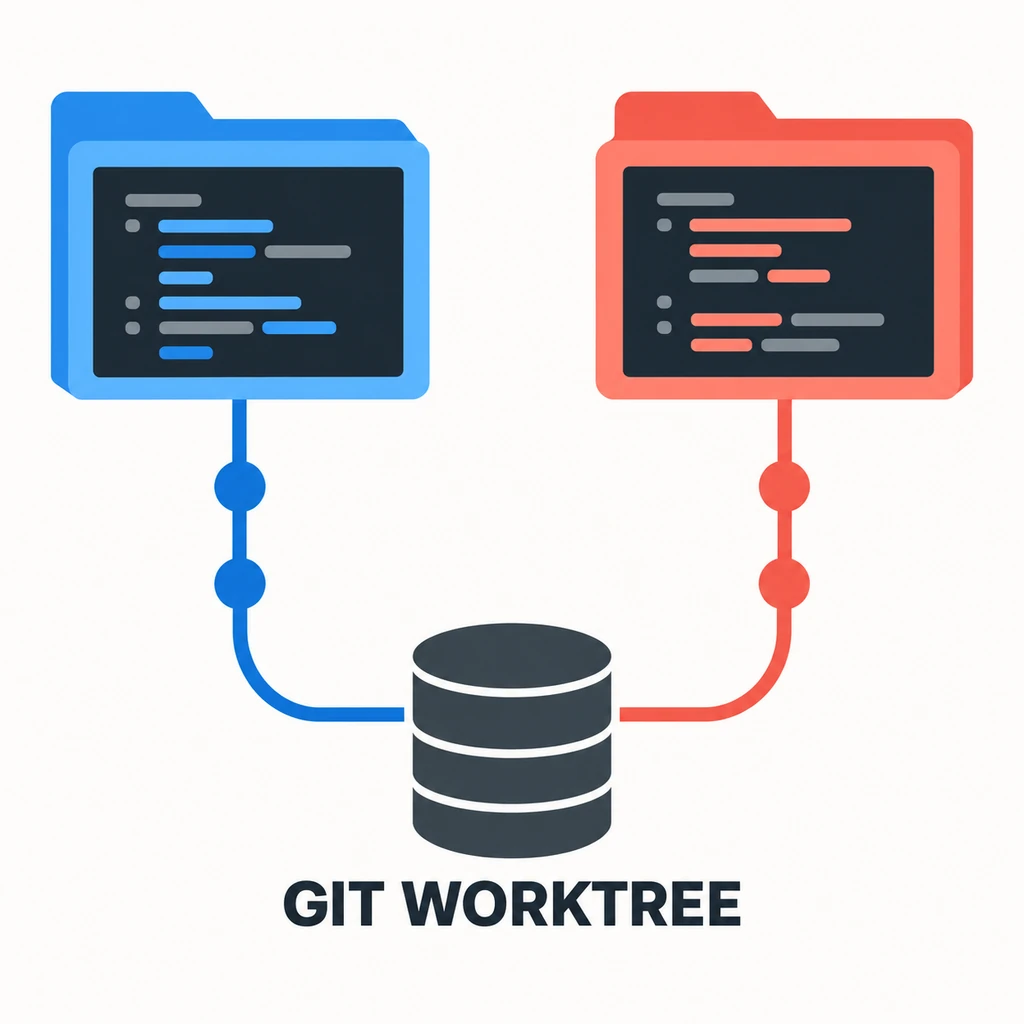
Git manages linked worktrees; OpenCode runs from whichever project directory you open. A worktree has its own checked-out files, index, and branch while sharing Git history and objects with the main repository. Use it when two independent tasks would otherwise edit the same checkout. It does not isolate databases, environment services, secrets, or generated files outside Git.
An OpenCode worktree is a Git linked working tree that gives a coding task its own directory and branch while sharing the repository history. Create it with Git, enter that directory, and start OpenCode there. This is useful when parallel tasks need separate files and review boundaries.
Related OpenCode guides: OpenCode Agents and AGENTS.md · OpenCode JSONC configuration · OpenCode permissions · OpenCode session storage.
1. What a Git worktree changes for OpenCode
A Git worktree is another working directory attached to the same repository. The main checkout might stay on main, while a sibling folder checks out work/auth. Each folder has a different set of files on disk and a different branch checkout. Git still shares the underlying object database, so you do not need a full repository clone for every task.
OpenCode does not need a special worktree mode for this workflow. Start the CLI from the new directory and it sees that folder as the project context. This keeps file references and edits in the intended checkout. Global OpenCode settings may still apply, but project files, untracked files, and local environment setup do not magically copy between worktrees.
2. Create a linked worktree in three safe steps
First check the current checkout. A clean starting point makes it easier to tell whether a later change belongs to the main task or the new branch. From the repository root, create a new branch and its worktree in one command. Choose a sibling folder so the new checkout does not sit inside the original repository.
The command below creates work/auth at the current commit and checks it out under ../app-auth. If that branch already exists, omit -b and pass the existing branch name only when it is not checked out in another worktree. Git normally prevents one branch from being active in two worktrees at once.
Run these commands from the main repository root. The new branch starts at the current commit.
git status --short --branch
git worktree add -b work/auth ../app-auth
cd ../app-auth
opencode
git worktree list
git -C ../app-auth status --short --branch
3. Start OpenCode in the intended directory
After cd ../app-auth, run opencode in that shell. The current directory is the important boundary: open a separate terminal or session for every worktree, and verify the project root before asking the agent to change files. A useful first request is read-only, such as asking OpenCode to summarize the branch and list the files it would inspect.
Give each session a narrow assignment and name its branch in the task notes. For example, one checkout can update authentication tests while another handles documentation. Avoid telling two sessions to change the same shared file, run overlapping database migrations, or write to a single generated-output directory. Separate folders reduce file collisions; they do not coordinate agents automatically.
4. Avoid branch, file, and service collisions
A worktree separates tracked files and the index, but it is not a container or security boundary. A local database, test server, cache, Docker project, or external account may still be shared by every session. If a task needs a service, give it a distinct database/schema, port, project name, or disposable environment before running writes.
Git checks out tracked files from the selected commit. Untracked and ignored files such as .env, local certificates, caches, and build output are not guaranteed to appear in a new worktree. Recreate only the setup that is needed, load secrets through the approved environment, and keep them out of Git. Check each folder with git status --short --branch before and after agent work.
| Situation | Worktree fit | Check before starting |
|---|---|---|
| Independent feature with a separate branch | Good fit | Assign one owner and a clear file boundary. |
| Read-only research on the current diff | Usually unnecessary | A second OpenCode session can inspect the same checkout. |
| Two tasks use one local database or server | Conditional | Separate schema, port, or disposable service first. |
| Both tasks edit the same files | Poor fit | Sequence the edits or split the responsibilities. |
5. Review, merge, and clean up without losing work
Review the worktree branch as its own change. Inspect git diff, run the project checks from that directory, and confirm the branch contains only the intended files. Merge or rebase through your normal team process after tests pass. A linked worktree does not replace code review, and changes in one checkout do not automatically appear in another until commits are shared.
Before removal, check for uncommitted changes and decide whether to commit, stash, or keep them. git worktree remove ../app-auth removes a clean linked checkout; Git refuses to remove a worktree with changes unless a force option is used. Do not use force as routine cleanup. After manually deleting a worktree folder, git worktree prune can remove stale registration records; it does not delete a healthy working directory.
6. Choose a worktree or another OpenCode session
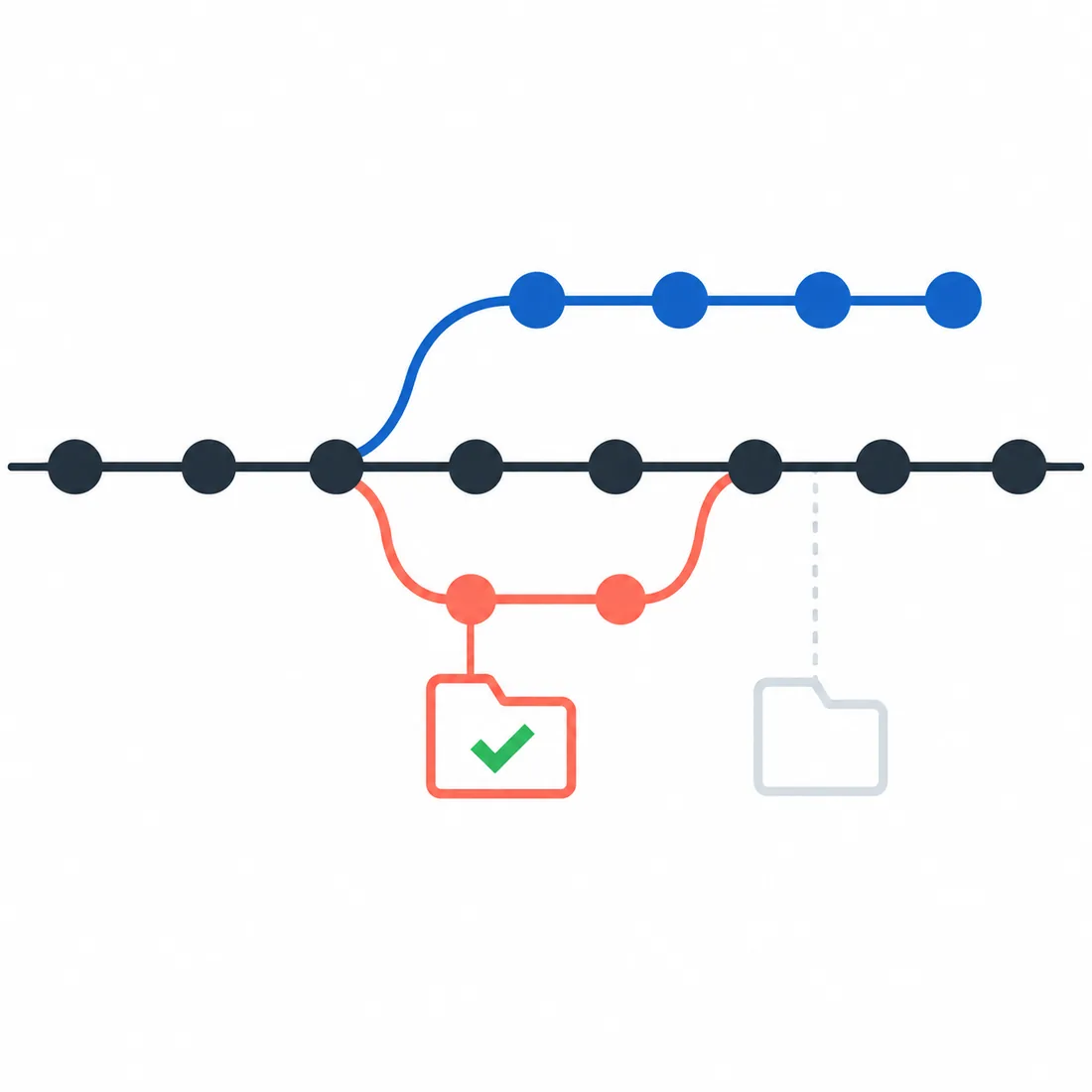
Use a worktree when tasks need different branches, independent file snapshots, or a reviewable boundary that can stay open for hours or days. Use another session in the same checkout for read-only investigation or work that must see the latest uncommitted files. Use a normal branch switch when tasks are sequential and only one checkout needs to be active.
A worktree adds lifecycle work: branch naming, dependency setup, service isolation, tests, merge, and cleanup. If two agents must edit the same files, splitting them into separate worktrees can make the final merge harder rather than safer. Break the work into non-overlapping changes first, or run those edits sequentially.
7. Limits and common troubleshooting checks
If git worktree add says a branch is already checked out, inspect git worktree list and choose a new branch or return to the existing worktree. If OpenCode shows unexpected files, check the terminal path and the project root before changing configuration. If a command cannot find a local file, remember that ignored and untracked files are not part of the checkout.
If tests conflict across sessions, look outside Git: databases, ports, temporary folders, code generators, and shared caches are common sources. If removal is blocked, run git status inside that worktree and preserve any useful change before cleanup. Keep the main checkout available for integration and use the worktree list to see every registered directory.
OpenCode worktree FAQ
How do I use Git worktrees with OpenCode?
Run git worktree add -b branch-name ../folder-name from the repository, enter the new folder, and launch opencode there. Verify the branch and directory before allowing file edits.
Does OpenCode have a built-in worktree command?
This guide uses Git's worktree commands. OpenCode can be started from the new project directory; no special worktree flag is required for the workflow shown here.
Can two OpenCode sessions use the same branch in two worktrees?
Git normally prevents checking out the same branch in multiple linked worktrees. Create a separate branch for independent changes or return to the existing checkout.
Are environment files copied to a new worktree?
Tracked files are checked out from Git. Untracked and ignored files such as local .env files are not guaranteed to be present; set up the environment deliberately and keep secrets out of Git.
How do I remove a Git worktree safely?
Check its status, preserve or commit changes, then run git worktree remove path. Use git worktree prune to clear stale registration records after a directory was removed outside Git.
Official references
Git and OpenCode documentation were checked on September 23, 2026. Worktree lifecycle commands are Git behavior; confirm command options against your installed Git version.
Related OpenCode guides: OpenCode Agents and AGENTS.md · OpenCode JSONC configuration · OpenCode permissions · OpenCode session storage.