
OpenCode Web guide
OpenCode Web: Run the Browser UI, Set the Port, and Secure Access
The short answer: run opencode web when you want OpenCode in a browser, keep the default localhost binding for a personal machine, and add a password before exposing the server to another device. This guide covers the Web UI, ports, hostnames, CORS, sessions, opencode attach, Windows and WSL, and the checks that separate a browser problem from a provider or project problem.
- Quick answer
- opencode web
- Documentation check
- Checked October 25, 2026
- Reading time
- 14 min read
Quick answer
OpenCode Web at a glance
| Goal | Command or setting | What to verify |
|---|---|---|
| Start locally | opencode web | The browser opens and the server stays on localhost. |
| Use a fixed port | opencode web --port 4096 | The port is free and the URL is recorded. |
| Allow network access | --hostname 0.0.0.0 | A password is set before another device can connect. |
| Protect a shared server | OPENCODE_SERVER_PASSWORD | The secret is injected at runtime, never committed. |
| Join from the TUI | opencode attach http://localhost:4096 | The web server and terminal use the intended session. |
Quick answer: start local, then widen the boundary deliberately
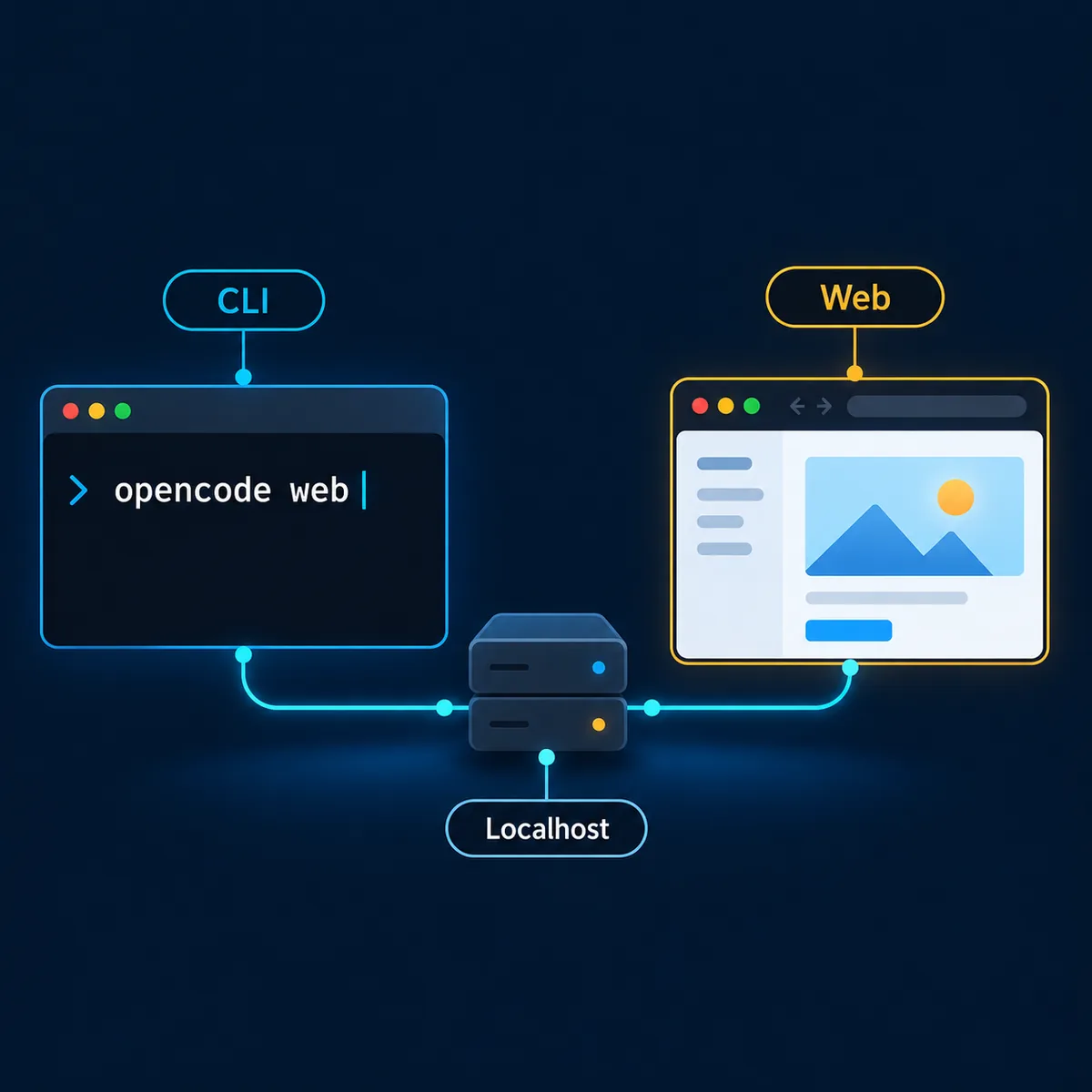
OpenCode Web is a browser interface for the OpenCode server. It is useful when you want a visual session list, a browser tab for an existing project, or a second way to reach the same coding workflow without keeping the full terminal UI in front of you. It is still a local developer service, not a hosted OpenCode account that removes the need for provider credentials.
The safest first command is opencode web with no hostname override. The official Web documentation says the server binds to 127.0.0.1 and chooses an available port, then opens the default browser. That keeps the listener on the current machine while you confirm the project directory, provider connection, permissions, and session behavior.
Only after the local flow works should you choose a fixed port, a network hostname, mDNS discovery, or a CORS rule. Each option changes who can reach the service. A browser that cannot connect is usually a port or process issue; a server that is reachable by the wrong people is a boundary issue and needs a different response.
Start OpenCode Web and record the local URL
opencode webRun the command from the repository or workspace you intend to use. OpenCode starts a local Web server and opens the browser. Keep the terminal that owns the process visible long enough to record the address, port, and any warning. A clean browser tab is not proof that the server can read the right files or reach the selected model.
For a repeatable local setup, use opencode web --port 4096. A fixed port helps bookmarks, scripts, and opencode attach, but it also creates a collision with another process. When the command fails, check which process owns the port before changing the OpenCode configuration. Do not solve a collision by publishing every port on the host.
The first Web task should be read-only: list the current project, summarize one small file, and show the active session or server status. Then check Git status and the provider model from the same workspace. This sequence gives you evidence about the browser, process, repository, and provider without mixing four changes into one diagnosis.
Port, hostname, mDNS, and CORS: know what each flag changes
A port is a number on one host; a hostname controls which network interfaces accept the connection. The documented default is an available port on 127.0.0.1, which is a local-only boundary. --port 4096 changes the number, while --hostname 0.0.0.0 makes the service listen on network interfaces and therefore changes the exposure decision.
mDNS discovery is convenient on a trusted local network. The official example uses opencode web --mdns and advertises an opencode.local name; a custom domain can separate multiple instances. Discovery does not encrypt traffic or replace authentication. Treat it as a way to find a server, not as a permission system.
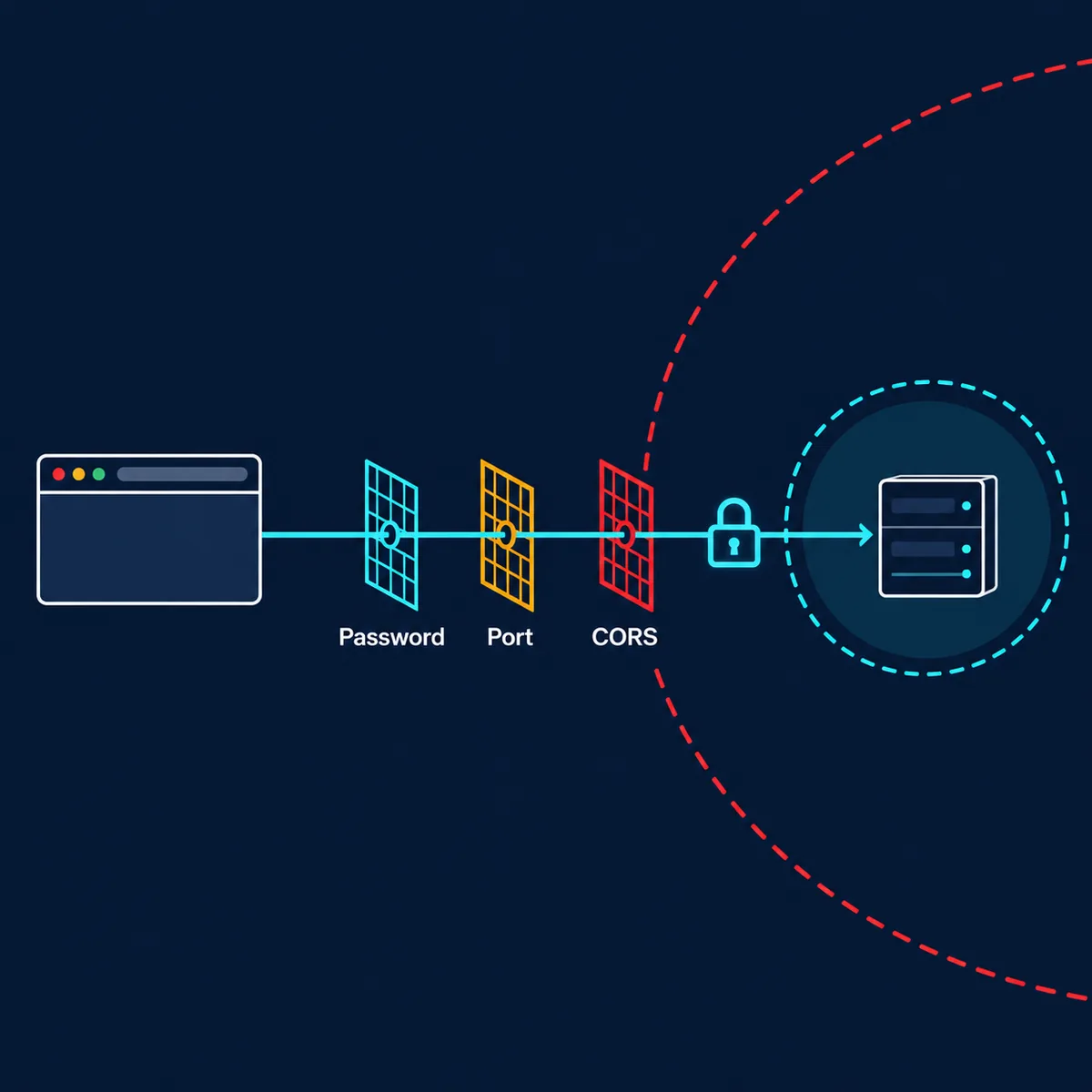
CORS controls which browser origins may make cross-origin requests. It is useful for a custom front end, but it does not make an exposed server private. Keep the allowed list narrow, test the exact origin, and avoid copying a wildcard rule from a development example into a shared or public environment.
| Setting | Default or example | Boundary to check |
|---|---|---|
| Port | Random available port; --port 4096 | Collision, bookmark, and attach URL |
| Hostname | 127.0.0.1; --hostname 0.0.0.0 for LAN | Which interfaces and devices can connect |
| mDNS | --mdns and optional --mdns-domain | Trusted network and name collisions |
| CORS | --cors https://example.com | Exact browser origin, not a blanket allow rule |
Secure OpenCode Web before network access
The official warning is direct: if OPENCODE_SERVER_PASSWORD is not set, the server is unsecured. That is acceptable for a local-only experiment but not for a listener reachable from another device. Set the password through the environment used to launch the process, and keep it out of opencode.json, shell history, screenshots, and committed .env files.
The default username is opencode; the documentation also describes OPENCODE_SERVER_USERNAME for a custom value. Credentials protect the Web server, not the model provider or the repository. Review provider keys, OpenCode permissions, file mounts, and the account or user that owns the process as separate controls.
Before using --hostname 0.0.0.0, verify the local firewall and the network segment. Prefer a private development network, a short-lived password, and a known port. If a reverse proxy, VPN, or custom front end sits in front of the server, document which layer terminates TLS and which layer still sees the session token.
Use sessions in the Web UI and attach the terminal
The Web home page can show active sessions and start new ones. Use the session list to confirm that you are working in the intended project before sending a prompt. A browser tab can remain open after the process or repository changes, so re-check the server status instead of assuming that an old tab points to the current workspace.
The server status view helps distinguish a Web process from a connected coding session. When a model is missing, inspect the provider and model ID in the same server context. When files are missing, inspect the working directory and the process user before changing the prompt or reinstalling the CLI.
To work with both interfaces, start the Web server and run opencode attach http://localhost:4096 from another terminal. The official documentation describes the two interfaces sharing sessions and state. Use one clear owner for edits, keep a Git diff after each small change, and close the extra interface when the experiment is complete.
Windows and WSL checks before you blame the browser
The official Web page recommends running opencode web from WSL on Windows for the best file-system and terminal integration. That recommendation matters when the repository is on a Linux path, when shell tools are installed inside WSL, or when a PowerShell process sees a different PATH and home directory from the project tools.
Record where the command runs, where the repository lives, and which user owns the process. A browser opened from Windows can still connect to a WSL listener, but a localhost URL, firewall rule, and file path may cross a boundary that the terminal does not. Test a read-only request before allowing edits.
If the page opens but a command or file reference fails, compare opencode --version, the current directory, the provider environment variables, and the shell used to start Web mode. The existing deployment, VS Code, and permissions guides cover those adjacent checks; this page focuses on the browser server and its boundary.
Troubleshooting: isolate the failing layer
Start with the process and URL, then move inward. A browser connection error points to the server process, port, hostname, firewall, or CORS. A page that loads but cannot start a session points to the project, provider, permissions, or model. Changing all of those at once makes the next result impossible to interpret.
For a fixed port, check whether another process is listening and whether the URL includes the same port that the terminal printed. For a network hostname, test from the second device only after the local URL works and a password is set. For mDNS, compare the advertised name with the actual address before assuming DNS is the problem.
When a session behaves unexpectedly, save the server command, working directory, model ID, environment source, and Git status. Reproduce with a short read-only request, then one small documentation change. Stop if the diff includes unrelated files, secrets, generated output, or a path outside the intended worktree.
| Symptom | Likely layer | First check |
|---|---|---|
| Browser refuses connection | Process, port, hostname, or firewall | Read the terminal URL and test localhost |
| Page loads but no session starts | Provider, model, or workspace | Check server status, model ID, and working directory |
| Remote device cannot connect | Binding, firewall, or password | Use a known hostname, port, and runtime password |
| Custom front end is blocked | CORS | Compare the exact Origin with the allow list |
| TUI sees a different state | Attach URL or process | Attach to the printed port and compare sessions |
When OpenCode Web is the right interface
Use Web mode when a browser session makes the project or conversation easier to inspect, when you need a second view of a running server, or when the team wants a repeatable local URL. Keep the terminal UI for fast keyboard navigation, shell-heavy work, or environments where a browser is not available.
Web mode does not replace the provider guide, permissions guide, or Docker guide. It changes how you reach the OpenCode server. Provider credentials, file permissions, project mounts, MCP tools, and Git review still need their own checks. Link to the narrow guide that matches the next decision instead of copying every setup rule into this page.
A stable routine is simple: start locally, verify the project and model, set a password before widening the hostname, record the port, attach the TUI only when needed, and close the server when the task ends. This keeps the convenience of a browser without treating a development listener as a public service.
OpenCode Web FAQ
What is OpenCode Web?
OpenCode Web is a browser interface served by the OpenCode CLI. Run opencode web to start a local server and open the Web UI.
How do I start OpenCode Web?
Run opencode web in the intended project. The server uses localhost and an available port by default, then opens the default browser.
How do I use a fixed OpenCode Web port?
Run opencode web --port 4096, confirm that the port is free, and use the printed URL for the browser or opencode attach.
Is OpenCode Web secure without a password?
A local-only listener may be acceptable for a short experiment, but the official documentation warns that the server is unsecured without OPENCODE_SERVER_PASSWORD. Set a runtime password before network access.
Can I access OpenCode Web from another device?
Yes, bind to an appropriate network hostname such as --hostname 0.0.0.0, set a password, review the firewall, and test from a trusted network. Do not expose a development server casually.
How do I connect the terminal to OpenCode Web?
Start the server and run opencode attach http://localhost:4096 in another terminal, replacing the port with the one printed by your Web process.
Should Windows users run OpenCode Web in WSL?
The official Web documentation recommends WSL for the best file-system and terminal integration. Confirm paths, PATH, environment variables, and firewall behavior in the shell that starts the server.
Official sources
Verify the current Web contract
Commands and server behavior were checked against the official Web, CLI, and configuration pages on October 25, 2026. Flags and defaults can change; verify them again before exposing a server or automating a shared workflow.