
OpenCode command guide
OpenCode Commands: Custom Commands, Arguments, and Safe Reuse
The useful distinction is simple: built-in slash commands control the TUI, while custom OpenCode commands turn a repeatable prompt into a named workflow. Start with a project-level Markdown file in .opencode/commands/, use $ARGUMENTS only when the input is genuinely variable, and verify the resulting prompt before allowing file edits or shell commands. This guide covers the command boundary, Markdown and JSON configuration, positional arguments, shell output, file references, permissions, and the mistakes that make a command look unavailable.
- Primary keyword
- opencode commands
- Documentation check
- Verified 2026-08-19
- Reading time
- 14 min
Quick answer
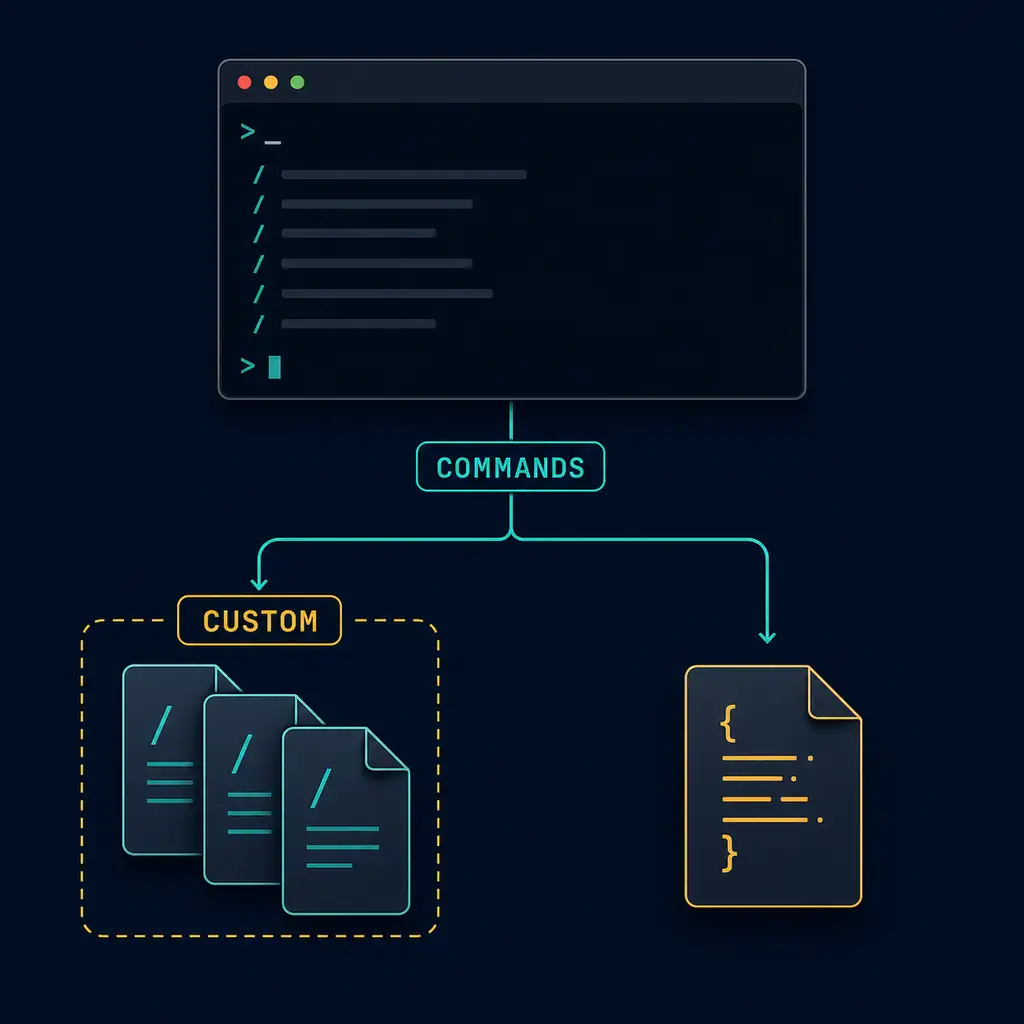
OpenCode commands have three useful layers
Choose the smallest layer that solves the task. This keeps a command easy to discover and prevents a prompt shortcut from silently becoming a broad automation system.
| Layer | What it does | Example |
|---|---|---|
| Built-in TUI command | Controls the current OpenCode session or exposes a built-in action. | /help, /undo, /redo |
| Custom command | Expands a named prompt from Markdown or JSON configuration. | /review with $ARGUMENTS |
| Shell command | Runs in the terminal and is a separate execution surface. | npm test or git status |
That distinction matters because a custom command does not replace the OpenCode CLI installation, provider setup, or permission policy. If opencode is not found, start with the deployment guide. If the model cannot be selected, use the provider checks. If a command can edit or run code, review the permission guide before making it part of a team workflow.
Facts from the official documentation are the command names and supported placeholders. The recommendation to begin with a project file, use a harmless read-only task, and keep command names unique is operational advice. It reduces the blast radius when a command template, model, or provider changes.
Built-in commands
Use slash commands for the current TUI session
OpenCode includes built-in TUI commands such as /init, /undo, /redo, /share, and /help. They are not shell aliases and they are not entries that belong in your repository's package.json. Type them in the OpenCode interface where the prompt is accepted, then read the confirmation or result before continuing.
/help is the safest first check when you are unsure which commands the installed version exposes. /undo and /redo affect the session's change history, so use them as part of a reviewable Git workflow rather than as a replacement for commits. /share can create a shareable session state; inspect what the command makes visible before using it with private repositories or client code.
The exact built-in set can change with OpenCode releases. Treat the official Commands documentation and the installed /help output as the authority. This page focuses on the stable model for finding and authoring commands, not on pretending that a static list can never change.
Markdown example
Start with a project custom command
The Markdown route is easy to review in Git and keeps the prompt close to the repository that needs it.
- Create
.opencode/commands/review.mdin the project root. - Add a short frontmatter description and a prompt with one clear responsibility.
- Run the new command in a small branch, inspect the generated prompt and diff, then share it with the team.
.opencode/commands/review.md
This example asks for review context without granting an automatic write path.
---
description: Review the current changes
---
Review the current Git changes. Explain risky behavior,
missing tests, and the smallest safe follow-up.
Do not edit files until I approve the plan.
The filename becomes the command name, so the file above is invoked as /review. A global file under ~/.config/opencode/commands/ is available across projects, while a file under .opencode/commands/ stays with one repository. Prefer the project directory for commands that mention local paths, test conventions, or team policy. Prefer the global directory for a generic personal workflow that does not expose private assumptions.
Keep the prompt explicit about output and boundaries. “Review the current changes and suggest a plan” is easier to validate than “fix everything”. The command can be powerful because it is reusable; it should not be vague because it is reusable.
JSON configuration
Use the command object when configuration belongs with the project
OpenCode also supports custom commands through the command object in its JSON or JSONC configuration. Use this route when the command should be reviewed beside other project settings, or when you need a compact definition with a specific agent or model. Do not confuse this with the full question of config precedence; use the opencode.jsonc guide for locations, schema, permissions, and rollback.
{
  "$schema": "https://opencode.ai/config.json",
  "command": {
    "test-review": {
      "template": "Review the latest test output and list the first three fixes.",
      "description": "Review test output",
      "agent": "plan"
    }
  }
}| Option | Use it for | Check before sharing |
|---|---|---|
template | The prompt sent when the command runs. | It is required and has a bounded task. |
description | The short label shown while discovering commands. | It explains the result, not an internal ticket number. |
agent | Selecting a named agent for the command. | The agent's tools and permissions fit the task. |
model | Overriding the default model for one workflow. | The provider exposes the exact model ID. |
subtask | Running the command as a subtask when appropriate. | The extra context and permission boundary are understood. |
JSON configuration is not a secret store. Keep API keys, tokens, and private endpoints in the provider's supported credential path. A command template can mention a file or run a shell expression, so the config deserves the same review as a script even when it is only a few lines.
Arguments and context
Use variables only where the workflow really changes
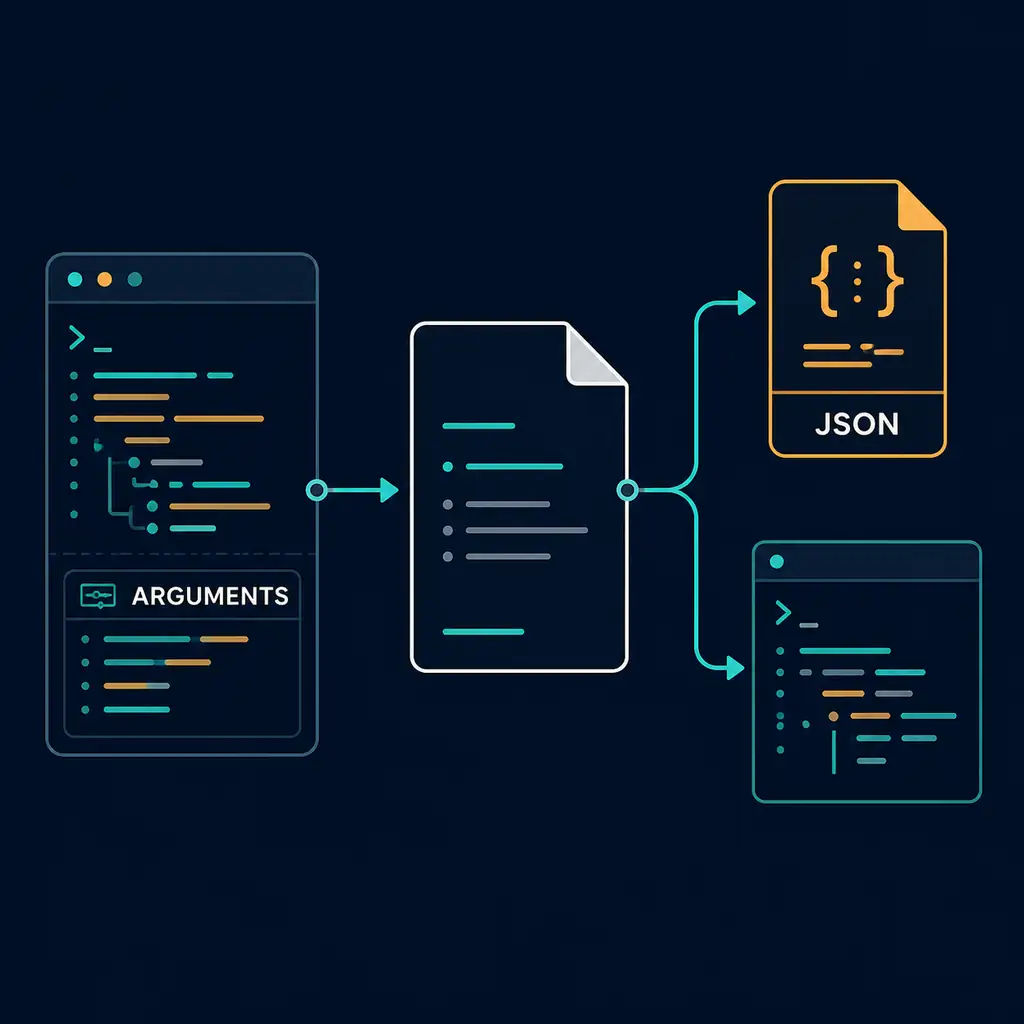
$ARGUMENTS receives the complete argument string; $1, $2, and later placeholders let you separate positional values.
---
description: Create a file with supplied values
---
Create a file named $1 in directory $2.
Use this content: $3
Show the proposed path before writing.
A call such as /create-file config.json src "{ \"key\": \"value\" }" supplies three values. The template should state how each value is used and what the agent should show before editing. If you only need one free-form phrase, $ARGUMENTS is simpler than positional placeholders.
Two other forms are useful but deserve extra caution. Put @src/components/Button.tsx in the prompt when the command should include a known file reference. Put !`npm test` or !`git log --oneline -10` in a template when current shell output is part of the prompt. Commands run from the project root, and their output becomes context; do not include destructive or secret-bearing shell commands in a reusable template.
Arguments are input, not permission. A command that accepts a path, a shell fragment, or pasted JSON still runs under the configured OpenCode permission policy. Start with read-only output, then approve a narrow edit, and only then consider an automated command for a trusted repository.
Safe reuse
Keep command names, prompts, and permissions predictable
Custom commands can override built-in commands when they use the same name. Avoid names such as help, undo, or share unless you deliberately want that behavior and have a rollback plan. A unique name like review-tests tells the next developer what to expect and reduces accidental behavior changes after an upgrade.
Use Git to review command files like code. Check the prompt diff, the generated response, the files it references, and the shell commands it proposes. When a command selects an agent or model, verify those identifiers in the provider and Agents guide. When it relies on Skills or MCP context, keep those boundaries explicit with the Skills guide and MCP guide.
| Symptom | Likely layer | First check |
|---|---|---|
| Slash command is not listed | Path or name | Check the filename, directory, frontmatter, and project root. |
| Template runs but output is wrong | Prompt or arguments | Print a bounded request and test one argument at a time. |
| Shell output is empty or unsafe | Shell context | Run the command manually and inspect its working directory and permissions. |
| Built-in behavior changed | Name collision | Rename the custom command and compare with /help. |
| Model or agent fails | Provider/config | Verify the exact ID and read the provider or config guide. |
Verification workflow
Six checks before a command becomes team infrastructure
- Scope: write one sentence describing the command's input and output.
- Location: choose project or global storage and make the choice obvious in the README or guide.
- Inputs: test normal, missing, quoted, and path-like arguments.
- Context: inspect file references and shell output before asking for an edit.
- Permissions: begin with ask or read-only behavior, then approve the smallest useful change.
- Rollback: keep the command in Git and record how to disable or rename it if it conflicts with a built-in command.
This workflow is intentionally slower than pasting a large prompt once. The payoff is repeatability: the next run starts with the same naming, context, and review boundary. It also makes failures diagnosable. A missing command points to its file path; a bad result points to the template or arguments; a failed edit points to permissions; a model error points to provider configuration.
FAQ
OpenCode commands questions
What are OpenCode commands used for?
Built-in commands control a TUI session, while custom commands package a repeatable prompt into a named workflow. Use them for reviews, test summaries, file scaffolding, or other tasks with a clear input and output.
Where is the OpenCode custom command directory?
Use .opencode/commands/ for a project-level command and ~/.config/opencode/commands/ for a global command. The Markdown filename becomes the command name.
How do I pass arguments to an OpenCode command?
Use $ARGUMENTS for the complete string, or $1, $2, and later placeholders for individual values. Quote arguments that contain spaces or JSON.
Can an OpenCode command run a test or Git command?
Yes. The documented !`command` form injects shell output into the prompt. Run it from a trusted repository, inspect the command, and remember that output may include sensitive paths or data.
Why does an OpenCode command not appear?
Check the command directory, project root, filename, frontmatter, and name collision. Then use the installed /help output and the official Commands documentation to account for version changes.
How do I log out a provider from OpenCode?
Provider authentication is separate from custom command definitions. Use the provider's supported logout or credential-removal flow, then verify the active account in a clean session. Do not place credentials in a command file.
Official sources
Verify version-sensitive command details
This guide was checked against the official OpenCode documentation on 2026-08-19. Command names, paths, option names, and built-in behavior can change, so confirm the installed version before publishing a team workflow.
Summary
Use built-ins for the current TUI, Markdown files for reviewable project workflows, and JSON configuration when a command belongs beside other project settings. Keep arguments explicit, treat shell output as untrusted context, avoid built-in name collisions, and test every new command with a small, reversible task. That is the practical boundary between a helpful OpenCode command and an opaque automation shortcut.