
The short answer: OpenCode LSP connects the coding agent to language-server processes that understand a programming language. That gives an OpenCode session language-aware diagnostics, definitions, references, symbols, and other editor-style context. LSP is not an MCP server and it does not replace a formatter or test runner. Start with the current official LSP schema, map the right file extensions, verify the server command, and keep a small rollback path.
The query what is lsp in opencode is asking for more than the acronym. Developers usually want to know what the server changes in an AI coding workflow, whether it is enabled, where its configuration belongs, and what to check when diagnostics never appear. This guide answers those questions in one path without mixing LSP with unrelated installation or provider setup.
The official OpenCode LSP page checked on August 10, 2026 is titled LSP Servers and says that OpenCode integrates with LSP servers. It documents a lsp configuration object, command and extension fields, initialization options, a global disable switch, per-server disabling, and custom servers. Treat those details as a dated source snapshot: server commands and supported language packages still belong to the language server owner.
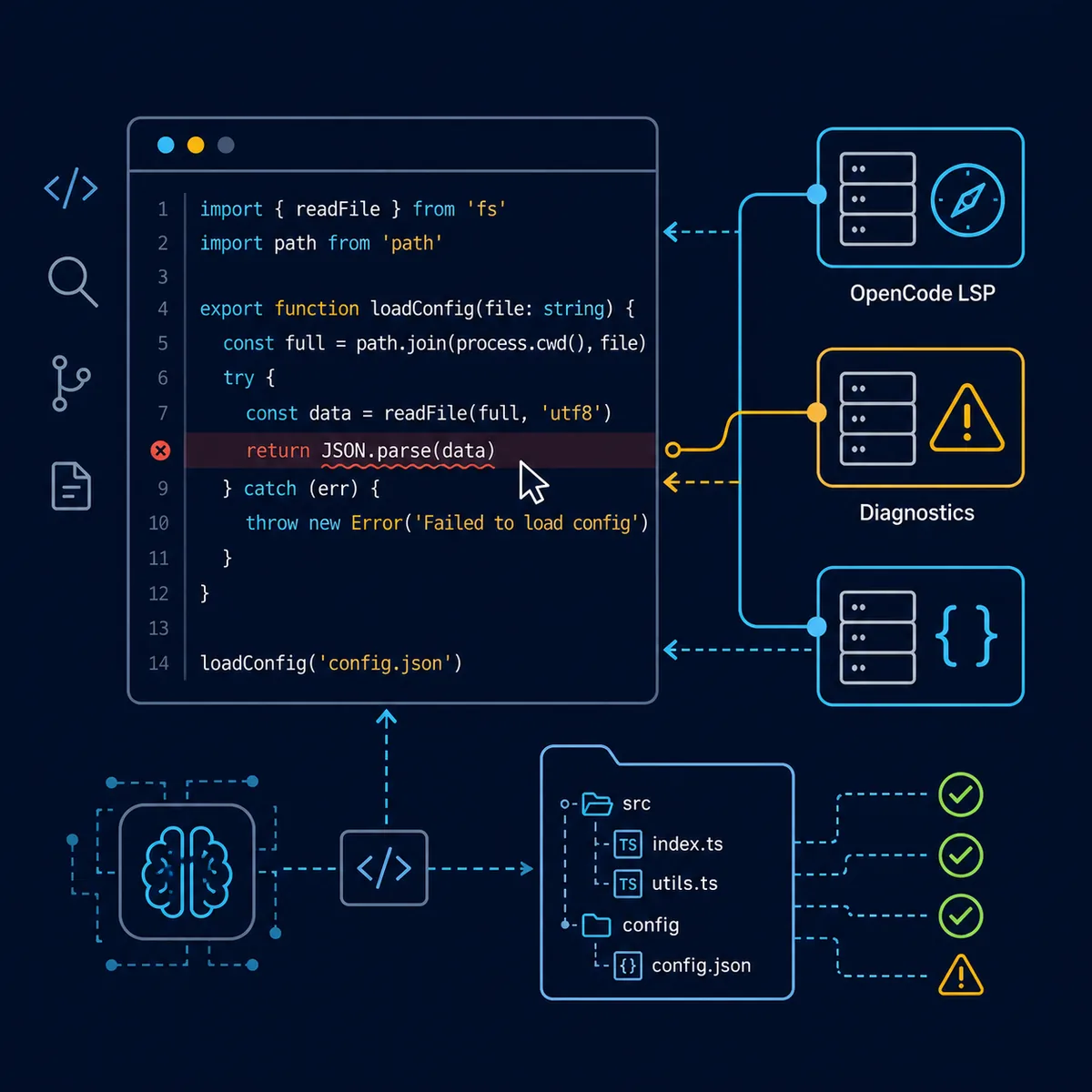
What is LSP in OpenCode? A language-aware layer
LSP stands for Language Server Protocol. A language server runs alongside the project and exposes structured information about files: diagnostics, symbols, definitions, references, hover details, and other capabilities supported by that implementation. OpenCode can use that information as part of a coding session instead of treating every file as unstructured text.
The practical benefit is context quality. If a TypeScript server understands that a symbol is imported from another module, an agent can reason about a rename or type error with stronger evidence. That does not make every answer correct: the server may be missing, the project may not load, or the language package may have its own configuration requirements. LSP improves the information available to the workflow; it does not replace review, tests, or a Git diff.
The useful mental model
Think of OpenCode as the consumer, the LSP server as a language specialist, and the repository as the shared source of truth. When one layer fails, the right repair is usually to inspect that layer rather than broadening permissions or changing the model first.
| Layer | What it provides | What it does not replace |
|---|---|---|
| LSP | Language-aware diagnostics, symbols, definitions, and references | Tests, formatter, or code review |
| MCP | External tools and data services | The language server for a project |
| Formatter | Style and layout changes | Type or semantic diagnostics |
| Provider/model | Reasoning and code generation | A working project toolchain |
How OpenCode finds the right LSP server
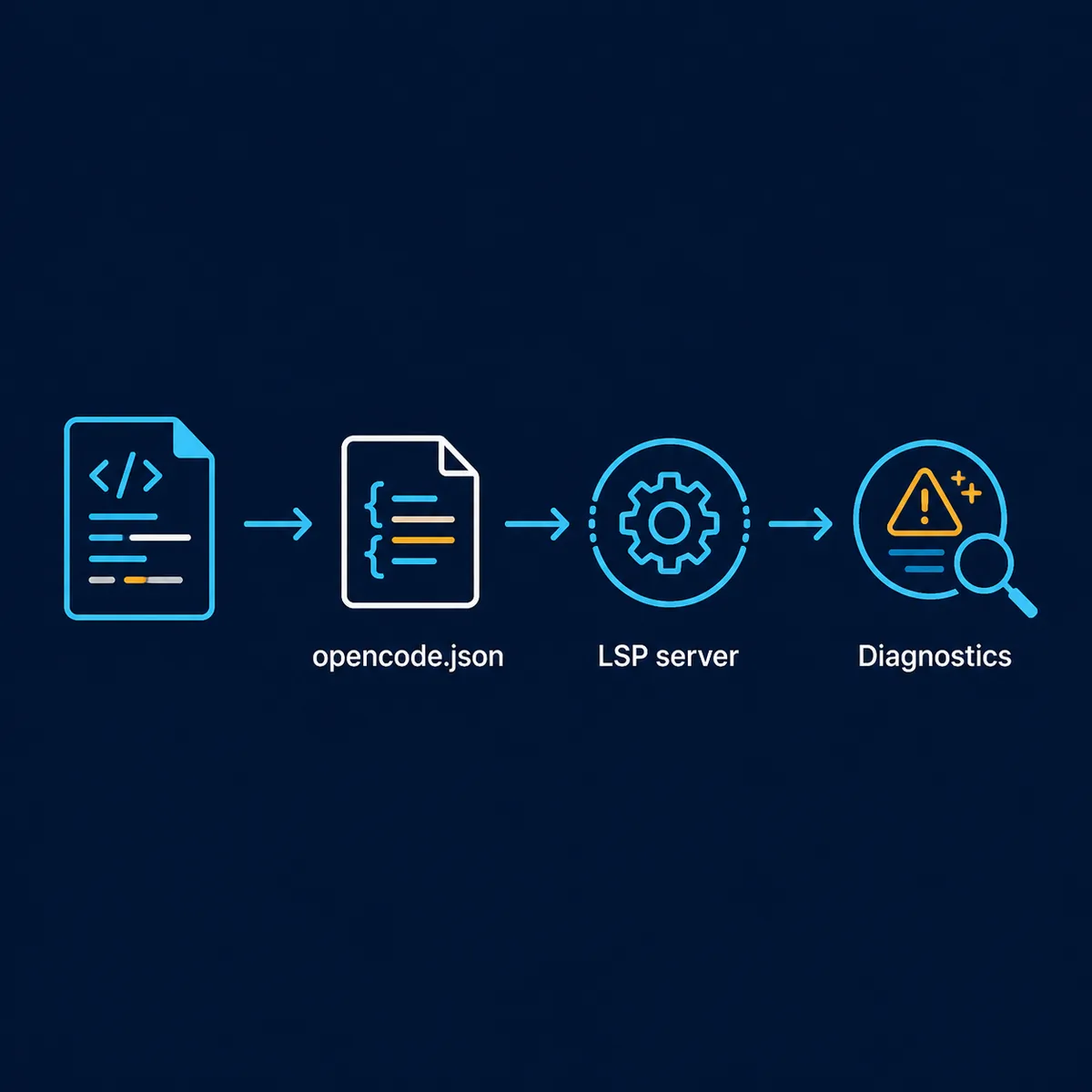
An LSP entry needs an executable command and a clear relationship to file extensions. The command starts the server, usually over standard input and output, while the extension list tells OpenCode which files should use that server. The exact executable, arguments, installation method, and project requirements come from the server documentation; do not guess a package name from a search result.
Start with one language in a small repository. Open a file with the expected extension, confirm the server process can start outside the agent when practical, and then ask for a read-only summary or diagnostic check. If the file extension does not match, a valid server can appear broken because OpenCode has no reason to attach it to the file.
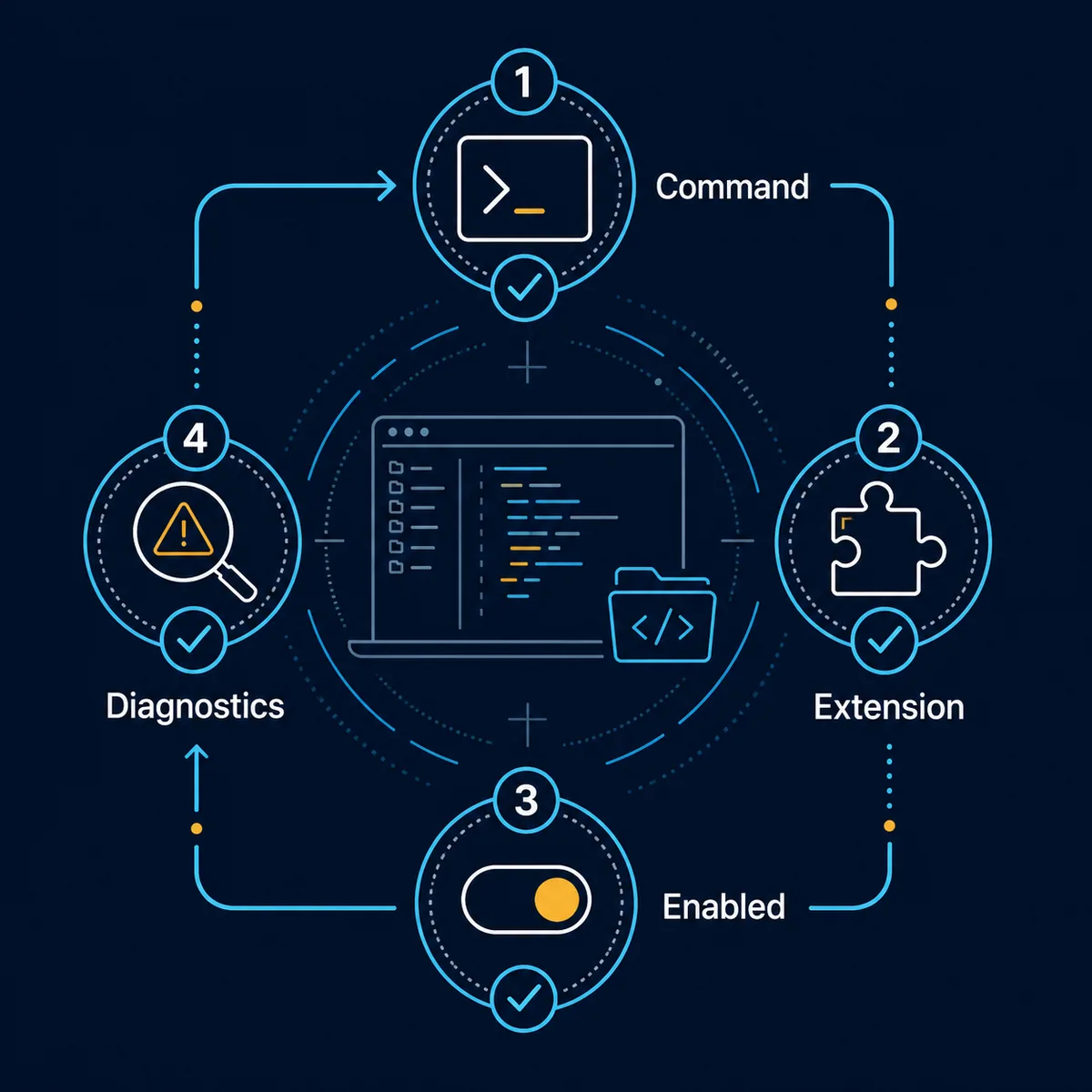
| Checkpoint | Evidence | If it fails |
|---|---|---|
| Command | The executable starts with the expected arguments | Check PATH, runtime, package, and stderr |
| Extension | The file extension matches the LSP entry | Check .ts, .tsx, or the server's documented extensions |
| Workspace | The server opens the intended project root | Check Git root and project configuration |
| Result | Diagnostics or symbols are returned | Inspect server logs and OpenCode configuration |
Add a minimal lsp configuration before tuning it
Put shared LSP decisions in a reviewed project configuration when the whole repository needs them. Keep personal experiments in global configuration until the command, extension mapping, and expected project root are understood. The existing OpenCode JSONC guide explains configuration scope and schema validation; use that page when the question is precedence or secret-free config ownership rather than LSP behavior.
A minimal entry is easier to debug than a large catalog. Give the server a descriptive key, keep the command array explicit, and list only the extensions that the server actually supports. If the server needs initialization options, add them after the basic process works. A valid JSON document can still fail at runtime when the executable, workspace, or language package is wrong.
{
  "$schema": "https://opencode.ai/config.json",
  "lsp": {
    "typescript": {
      "command": ["typescript-language-server", "--stdio"],
      "extensions": [".ts", ".tsx"]
    }
  }
}
This is a schema-shaped example, not a claim that every language server uses the same executable. Verify the command and extensions against the server's official documentation.
Enable, disable, or customize an LSP server
The current official docs state that if lsp is omitted, all LSP servers are disabled. To disable every server after another configuration enabled them, set lsp to false. To disable one named server, set its disabled value to true. These are useful controls when a server is slow, noisy, incompatible with a repository, or not allowed in a particular environment.
Custom servers are useful for languages or file types that are not covered by the built-in configuration. Define the command and extensions first, then add initialization options only when the server documents them. Keep a copy of the last known-good configuration and test one change at a time so a broken custom entry does not look like a model or MCP failure.
{
  "$schema": "https://opencode.ai/config.json",
  "lsp": false
}

{
  "$schema": "https://opencode.ai/config.json",
  "lsp": {
    "custom-lsp": {
      "command": ["custom-lsp-server", "--stdio"],
      "extensions": [".custom"],
      "initialization": { "preferences": { "mode": "strict" } }
    }
  }
}
The custom command and initialization object are placeholders. Replace them with values from the server owner, and do not commit credentials or private endpoints.
Verify OpenCode LSP with a low-risk test
Do not begin by asking the agent to rewrite a large module. Use a repository with a clean Git status, open one known file, and make the first request read-only. Ask OpenCode to identify a symbol, explain a diagnostic, or locate a definition. The result should be specific enough to compare with the editor, compiler, or language server output you already trust.
Once the read-only path works, make one reversible edit and inspect the diff. Record the operating system, server command, extension mapping, project root, and the exact test prompt. That small note turns a one-off success into a reproducible setup and makes future failures easier to classify.
- CleanStart from a repository whose branch and working tree are known.
- MatchOpen a file with an extension listed in the LSP entry.
- ReadAsk for a symbol, definition, reference, or diagnostic explanation.
- EditMake one small reversible change and inspect the diff.
- RecordSave the command, model, server, and rollback note.
Troubleshoot opencode lsps are disabled and missing diagnostics
When OpenCode reports that LSP servers are disabled, check configuration precedence before reinstalling anything. A higher-precedence file may set lsp to false, the project may omit the server name, or a per-server disabled flag may be active. Compare the resolved project path with the directory where the config file actually lives.
If the server is enabled but diagnostics are empty, check the command and extension mapping next. Run the server in the same shell when possible, verify its runtime and PATH, and inspect whether the project needs a lockfile, compiler configuration, or workspace root. Slow results often come from a server indexing a large repository rather than from the OpenCode model.
Keep permission changes narrow. LSP needs a process and project context; it does not automatically justify broad shell access, a wider MCP catalog, or an auto-approval mode. The existing permissions guide covers ask, allow, and deny decisions, while the MCP guide covers external tool servers. Link those guides when the failure crosses layers.
| Symptom | Most likely layer | First repair |
|---|---|---|
| All LSPs are disabled | Config precedence or lsp: false | Find the winning config and remove the unintended disable |
| One server is disabled | Named server flag | Check the server key and its disabled value |
| No diagnostics | Extension or process | Match the file extension and run the command directly |
| Slow first result | Indexing or workspace | Try a smaller repository and inspect server logs |
| Works in editor only | Different project root or config | Compare editor root, Git root, and OpenCode path |
LSP, MCP, formatters, and VS Code are different layers
LSP is about language intelligence inside the repository. MCP connects external tools or data services. A formatter changes style, and a test runner provides executable evidence. VS Code can host its own language integrations, but the fact that an editor shows diagnostics does not prove that an OpenCode session is using the same server or project root.
Use the matching guide when the symptom belongs elsewhere: the OpenCode MCP setup covers local and remote tool servers, the VS Code guide covers editor context and terminal integration, and the permissions guide covers approval boundaries. Keeping these page intents separate also keeps opencode lsp focused on language-server configuration rather than becoming a generic setup page.
opencode.jsonc configuration:Choose config scope and validate schema before debugging the server.
OpenCode in VS Code:Compare editor context, terminal path, and shortcuts.
OpenCode permissions:Keep process and repository permissions narrow.
OpenCode MCP:Separate external tool servers from language servers.
OpenCode LSP FAQ
What is LSP in OpenCode?
LSP is the Language Server Protocol layer that lets OpenCode use language-aware information such as diagnostics, symbols, definitions, and references from a language server.
How do I enable LSP in OpenCode?
Add an lsp entry with the server command and supported file extensions in the appropriate OpenCode configuration, then verify the command and project root with a read-only request.
Why are OpenCode LSPs disabled?
The current official docs say omitting lsp disables all servers. A winning config can also set lsp to false, or one named server can have disabled: true. Check configuration precedence first.
Does LSP replace MCP?
No. LSP provides language intelligence for repository files; MCP connects external tools and data. They can coexist, but they have different configuration, failure, and permission boundaries.
Can I add a custom LSP server?
Yes. Define its command and file extensions under lsp, then add initialization options only when the server documentation requires them. Test a custom server in a small repository before sharing it.
Why does LSP work in VS Code but not OpenCode?
The two sessions may use different project roots, commands, extensions, runtimes, or configuration files. Compare those inputs instead of assuming the editor's diagnostics prove the OpenCode setup is valid.
Official sources checked
OpenCode LSP references
The official LSP page was checked on August 10, 2026; server commands, supported extensions, and configuration fields can change.