
The useful distinction is simple: Desktop is a visual workspace for projects and sessions, while the OpenCode CLI remains the direct terminal path. Desktop is a good fit when you want tabs, project switching, and a visible session list. The CLI is often better for scripts, SSH, automation, and environments where a terminal is the product. This page covers the decision and the verification steps around it without replacing the official download or terminal documentation.
Open the official OpenCode download page。Official sources were checked on August 8, 2026. The official download page listed Desktop platforms and a tabs preview, but the checked HTML did not expose a version number, release date, or file-size table. Use the official page as the download CTA and recheck it before making version-specific claims.
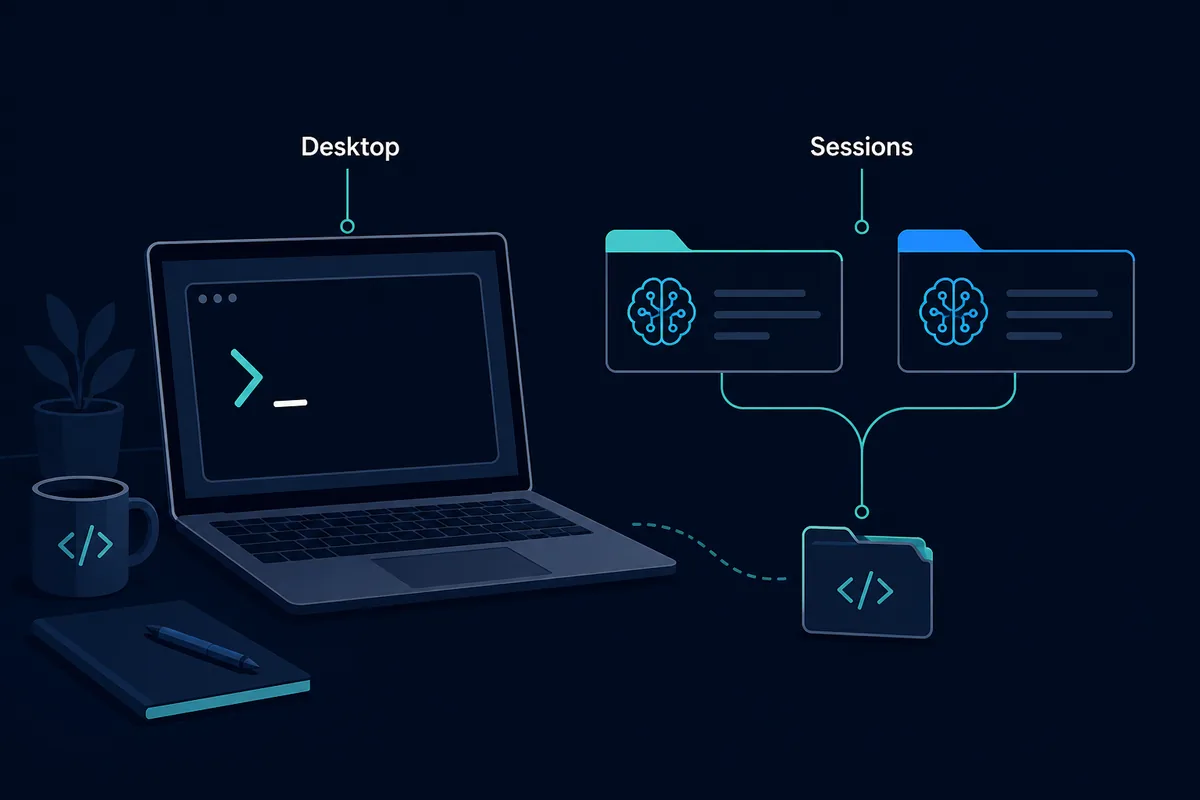
What is OpenCode Desktop? Keep the app and CLI distinct
The phrase opencode desktop has a mixed informational and navigational intent. Some people want to know whether a Desktop app exists, some want the installer for Windows or macOS, and others want to understand how its tabs differ from a terminal session. A useful page must answer all three without pretending that the third-party guide is the official product documentation.
As checked on August 8, 2026, the official OpenCode download page has a dedicated Download OpenCode Desktop section, describes organizing work and active sessions with tabs, and lists macOS, Windows, and Linux downloads. The official /docs/desktop/ URL returned 404 during this check, while the official docs homepage describes the terminal coding agent. That is why the safest source boundary is: use the official download page for the installer, and use this article for practical setup and comparison context.
Do not treat Desktop as a replacement for every CLI workflow. The app can make a multi-project workflow easier to see, but automation, remote shells, CI, and reproducible scripts still benefit from a command-line entry point. The right choice depends on where the repository lives, how you approve changes, and whether tabs solve a real daily problem.
What this page does not claim
The official page did not expose a stable version number, release date, or file size in the checked HTML. This page therefore does not claim a latest version, a direct file URL, a safety scan, or a specific release number. When the official source changes, re-check its platform rows before treating any command or screenshot as current.
OpenCode Desktop download and platform checks
Start from the official download page rather than a mirror, a reposted installer, or a guessed CDN URL. The page currently exposes stable download routes for the listed platforms, but the page itself is the safer CTA for this guide because it is the source that can change its file links and platform coverage.
The platform choice is not only about the operating system. Check architecture, whether the project is local or remote, how credentials are stored, and whether your team needs a reproducible terminal command. A Desktop installer can get you into a workspace quickly; it does not remove the need to verify the provider, model, permissions, and repository state.
| Platform | Official page currently lists | First check after install |
|---|---|---|
| Windows | Windows (x64) | Open a small local repository and confirm the project path. |
| macOS | Apple Silicon and Intel | Confirm the app architecture matches the machine. |
| Linux | .deb and .rpm packages | Check desktop launch, shell access, and provider reachability. |
| Remote development | No single installer solves this | Decide whether the project belongs in a remote shell or local workspace. |
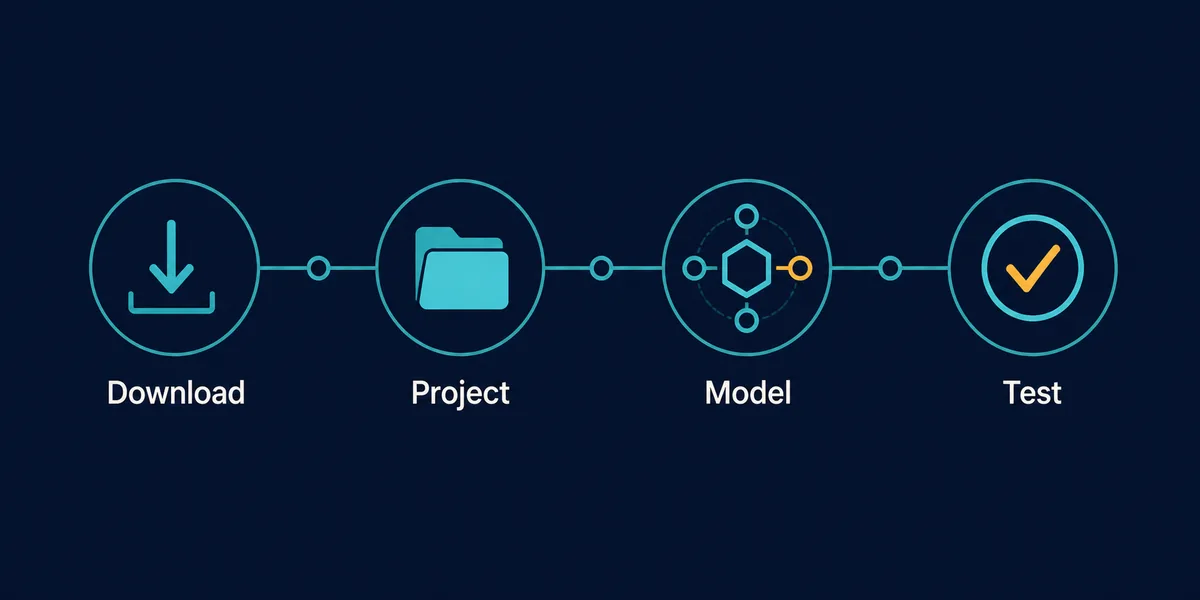
4-step first run: download, project, model, test
Treat the first launch as a verification exercise, not a race to give the agent full access. Use the official page, open a repository with a clean Git status, select one provider and model, and begin with a read-only request. The goal is to learn whether the app can see the same project and model assumptions that you intended.
The first edit should be reversible and easy to inspect: a README sentence, a test fixture, or a small formatting change. If that flow works, record the operating system, provider, model ID, project path, and any permission choice. That note becomes more useful than a vague claim that Desktop was installed successfully.
- Download Use the official OpenCode download page and choose the platform row that matches your machine.
- Project Open a small repository, check its Git status, and confirm the app is operating in the intended folder.
- Model Choose one provider and model, then verify that the model list and account or endpoint are what you expect.
- Test Ask for a file summary, make one low-risk edit, and inspect the diff before expanding permissions.
Sessions and tabs: what the desktop workflow changes
The clearest Desktop-specific benefit is session organization. Tabs can make it easier to separate a bug investigation, a documentation task, and a longer implementation without relying on shell history or multiple terminal windows. That is useful when the same developer moves between several repositories or wants to keep a review conversation visible while starting a new task.
Tabs do not create isolation by themselves. You still need to confirm the active project, branch, provider, model, and permission state before asking for an edit. A visible session list can reduce confusion, but it can also make it easier to forget which workspace contains an unsaved change. Treat the active project label and Git diff as the final source of truth.
A good habit is to name the task in ordinary language, keep one repository context per session, and close stale sessions after recording anything worth keeping. The existing session-storage guide covers local history and cleanup; this page stays focused on how Desktop helps you arrange active work.
When tabs are worth the switch
Choose Desktop when you repeatedly lose track of active conversations, move between local projects, or need a visible workspace for a small team workflow. Keep the CLI as the primary path when you live in SSH, scripts, terminal multiplexers, or automated jobs. Many developers can use both without treating the choice as permanent.
OpenCode Desktop vs CLI: which should you choose?
The comparison should be practical rather than ideological. Desktop optimizes for visibility and session management; the CLI optimizes for composability and proximity to the shell. Neither choice guarantees better code. The model, repository context, prompt, permission policy, and review discipline still determine whether an edit is useful.
Use the table as a routing rule. If the work needs a repeatable command, a remote host, or a scriptable pipeline, start with the CLI. If the work needs a clear list of projects and active conversations, start with Desktop. If you are unsure, run the same small repository task in both and compare setup friction, response time, diff quality, and recovery after a mistake.
A reversible decision
Do not migrate every project before testing. Keep the CLI path available, try Desktop on one low-risk repository, and record which workflow produced the cleaner diff. The result is evidence for your environment, not a universal ranking.
| Need | Desktop is a better starting point | CLI is a better starting point |
|---|---|---|
| Multiple active sessions | Tabs and a visible workspace help separate work. | Terminal tabs or a multiplexer can work but need more manual context. |
| SSH or remote host | Use only if the project and credentials are reachable from the app. | Natural fit for remote shells and server-side repositories. |
| Automation | Useful for interactive review, not a replacement for a script. | Best fit for repeatable commands, CI, and shell pipelines. |
| First-time evaluation | Good when you want project and session state visible. | Good when terminal installation and command control matter more. |
| Provider troubleshooting | Visual context helps, but still check the endpoint and model. | Direct logs and environment variables can be easier to inspect. |
MCP, Skills, and config: keep project boundaries clear
Desktop can make integrations easier to discover, but it does not change their risk. MCP servers still add tools and credentials to a session, Skills still need a clear instruction boundary, and opencode.json still belongs under version control only when it contains non-secret project settings. Start with the smallest integration that answers the task, then verify tool visibility before editing.
For MCP, a project-scoped server is usually easier to review than a broad global entry when only one repository needs it. For Skills, keep reusable workflow instructions separate from secrets and verify which files the session is allowed to read. For provider setup, compare the displayed model and endpoint with the values documented for the current environment. The related MCP, Skills, permissions, and Ollama guides cover those specialized decisions in more depth.
The important Desktop-specific check is context ownership: when a tab is active, know whether its project, model, MCP tools, and permissions match the work you intended. A visible interface helps only when the labels and Git state are actually checked.
OpenCode Desktop troubleshooting by layer
When Desktop fails, separate the problem into app launch, project path, provider access, model selection, permissions, and task quality. Changing all of those at once hides the real cause. Start with a local repository and a read-only request, then move one layer at a time toward edits.
If the app opens but the project is wrong, inspect the current folder and Git status before touching model settings. If the model is missing, compare provider login, endpoint, model ID, and network access. If the model answers but produces poor diffs, reduce the task and inspect context rather than reinstalling the app. If the issue only occurs on a remote repository, test the same provider and model from the terminal to isolate Desktop from infrastructure.
| Symptom | Likely layer | First action |
|---|---|---|
| App does not open | Installer or operating system | Recheck the official platform package and architecture. |
| Wrong files appear | Project path or workspace | Check the active folder and git status. |
| Model list is empty | Provider or network | Confirm account, endpoint, model ID, and connectivity. |
| MCP tools are missing | Config or auth | Check scope, server key, auth state, and tool listing. |
| Edit is unsafe or too broad | Permissions or prompt | Reduce allowed paths and inspect the diff before continuing. |
| Response is slow or vague | Model or context | Try a smaller task and compare the model choice. |
OpenCode Desktop FAQ
Is OpenCode Desktop different from the OpenCode CLI?
Yes. Desktop is a visual workspace for projects and active sessions, while the CLI is the terminal-oriented entry point. They can be used together; neither automatically produces better code.
Where should I download OpenCode Desktop?
Use the official OpenCode download page. It currently lists macOS, Windows, and Linux options. This guide does not guess a mirror or direct file URL.
Does the official page show a Desktop version number?
The checked download page did not expose a version number, release date, or file-size table in its HTML. Recheck the official page before making a version-specific claim.
Can I use OpenCode Desktop with Ollama or MCP?
The app can be evaluated with the same provider and MCP boundaries as other OpenCode workflows, but verify the current model, endpoint, auth state, and tool scope inside the active project.
Should I choose Desktop or CLI first?
Choose Desktop for visible projects and session tabs. Choose CLI for SSH, scripts, automation, and terminal-first work. Test one low-risk repository before migrating a wider workflow.
Why is the project path wrong in Desktop?
The active workspace may not be the repository you expected. Check the displayed project path, branch, and git status before changing provider or model settings.
Sources and freshness note
Official sources were checked on August 8, 2026. The official download page listed Desktop platforms and a tabs preview, but the checked HTML did not expose a version number, release date, or file-size table. Use the official page as the download CTA and recheck it before making version-specific claims.