
Quick answer
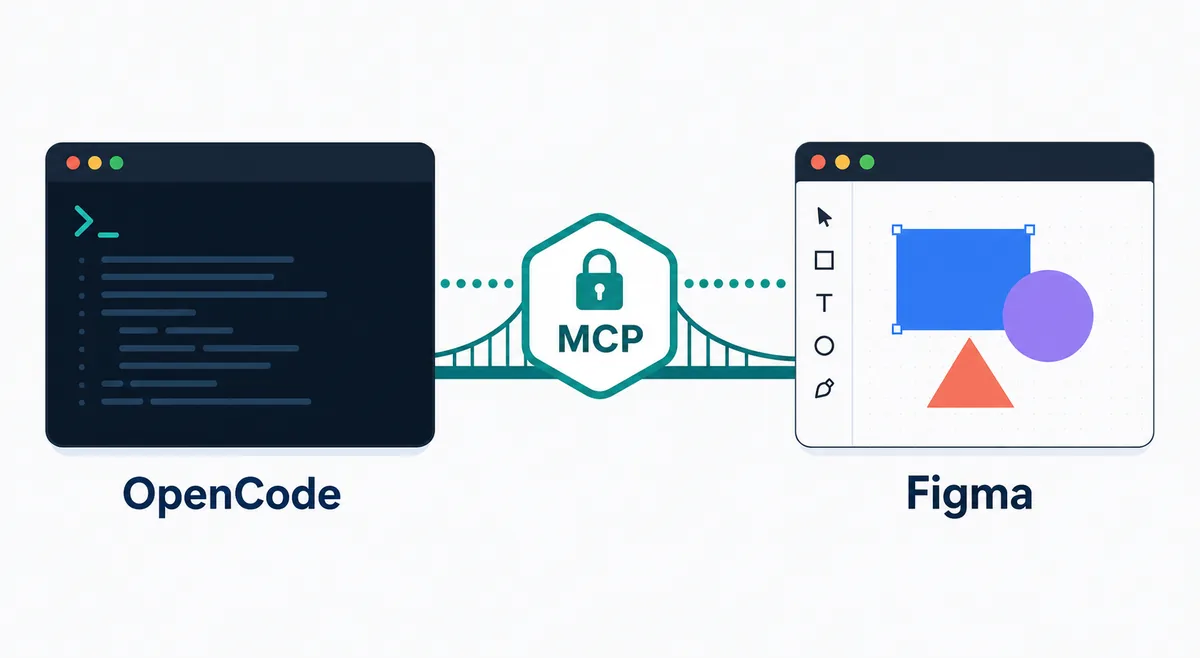
OpenCode Figma MCP
The keyword cluster is specific: users are not asking for a generic MCP explanation. They want to know how Figma MCP fits inside OpenCode, where the configuration belongs, how authentication should be handled, and how to avoid giving a design integration more access than a coding task needs.
This page does not compete with the existing OpenCode MCP guide. The MCP guide explains local versus remote servers, global versus project config, and general debugging. This page adds the Figma-specific decision layer: Dev Mode access, design-file context, OAuth or token handling, tool visibility, read-only validation, and safe prompts for implementation work.
1. Decide if Figma MCP is the right layer
Figma MCP is useful when OpenCode needs structured design information during a coding task: component names, selected frames, spacing, tokens, copy, or design-system intent. It is less useful when a human can describe the mockup, when the design is not final, or when the repository already has a reliable component spec.
Do not install it just because MCP sounds powerful. Every enabled MCP server adds tool descriptions to context and introduces an auth surface. If the task is only to compare screenshots or write a short design note, a link to Figma and a manual summary may be safer. If the task repeatedly turns Figma frames into code, the integration becomes easier to justify.
| Use case | Best action | Reason |
|---|---|---|
| Implement a designed component | Use Figma MCP read-only first | The agent can inspect structured design context before editing code. |
| Review a single screenshot | Do not add MCP | A screenshot or written brief is enough. |
| Team-wide design system work | Project or agent-scoped MCP | The integration should be reviewed with the repository workflow. |
| Unstable or private prototype | Wait or use manual context | Premature access can make the agent follow a moving target. |
2. Start from official Figma and OpenCode documentation
Treat any command copied from a blog, package list, or social post as unverified until it matches the official server owner's documentation. Figma's Dev Mode MCP instructions and OpenCode's MCP configuration docs are the two sources that matter for the first setup. Provider-specific endpoints, OAuth behavior, and Dev Mode requirements can change independently from OpenCode.
Use this order: confirm the Figma MCP path, confirm the OpenCode MCP config shape, decide whether the entry belongs in global config or repository opencode.json, then document the authentication method. This keeps the integration auditable and prevents a temporary experiment from becoming invisible infrastructure.
3. Choose global, project, or agent scope
Global config is convenient, but it makes Figma tools available in every OpenCode session. That is rarely the best default for a design integration. A project-scoped entry is better when one repository maps to one product or design system. Agent scope is best when only a design-implementation agent should see Figma tools.
The safer default is project or agent scope. Give the server a descriptive name such as figma_design, keep optional entries disabled until needed, and record which Figma files or teams the integration is meant to support. Avoid broad team-level access if the coding task only needs one file or component.
| Scope | Use it when | Risk control |
|---|---|---|
| Global | Most repositories need the same design tool | Use narrow credentials and disable when idle. |
| Project | One app maps to one design source | Review config with the repository. |
| Agent | Only design-to-code workflows need Figma | Limit tool visibility to that agent. |
4. Authenticate without committing secrets
Use OAuth when the Figma MCP path supports it, or environment-variable references when the server owner documents token-based auth. Do not paste a live token into opencode.json. The config should reveal the required header, server name, and intended scope without exposing the credential itself.
If a token is necessary, start with the smallest Figma scope that can read the required design context. Rotate it if it appears in logs, shell history, screenshots, or support tickets. For team workflows, prefer a documented credential owner and a revocation path over a personal token that nobody else understands.
5. Verify the connection before editing code
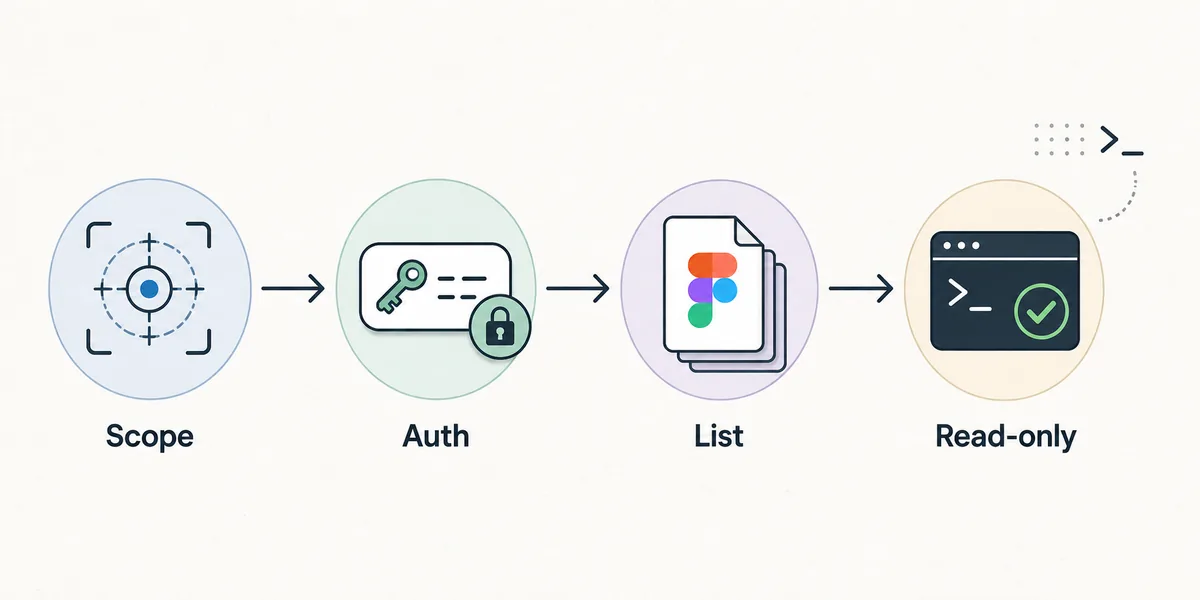
The first validation should be read-only. Run opencode mcp list, complete auth deliberately, inspect tool availability, then ask OpenCode to summarize one known frame or selected component. Compare the answer with Figma before asking for code edits. A wrong frame, stale selection, or missing permission is easier to catch before files change.
A useful verification note includes the server name, auth method, Figma file or team used for the test, a read-only prompt, the expected tool prefix, and a rollback command. Keep that note near the project setup documentation so future design-to-code failures start from evidence rather than memory.
- ScopeDecide where the Figma MCP entry belongs.
- AuthComplete OAuth or provide a token through environment variables.
- ListRun
opencode mcp listand inspect available tools. - Read-onlySummarize one known design object before editing code.
6. Use prompts that preserve design and code boundaries
A strong prompt should name the design object, the target component or route, the allowed files, and the output expectation. For example: ask OpenCode to inspect the Figma frame, compare it with the existing button component, and propose a minimal diff before editing. That is safer than asking it to 'build this Figma page' with no repository boundary.
Keep generated code reviewable. Ask for a short implementation plan, then a small edit, then run the project's formatter or tests. If the design contains ambiguous spacing, typography, or component states, require OpenCode to state the assumption instead of inventing a hidden rule. Design context improves implementation only when the coding boundary remains explicit.
7. Troubleshoot by isolating the failing layer
Separate five layers: Figma access, MCP server availability, OpenCode configuration, model tool visibility, and repository permissions. A 401 belongs to auth. Missing tools usually belong to config or discovery. A vague design answer can be a wrong file, a stale selection, or too many tools in context. A failed code edit may have nothing to do with Figma at all.
Change one layer at a time. Confirm the Figma source, then confirm MCP list/debug output, then run the read-only prompt, then edit a single low-risk component. If the agent starts ignoring design constraints, disable unrelated MCP servers and compare the same prompt with a smaller context.
| Symptom | Likely layer | First check |
|---|---|---|
| 401 or auth loop | Figma/OAuth | Account, scope, clock, and token state |
| No Figma tools | OpenCode config | Server key, enabled state, resolved config |
| Wrong frame | Design source | File, selection, Dev Mode access |
| Slow or vague answers | Context volume | Disable unrelated MCP servers |
| Bad code diff | Repository boundary | Allowed files, component contract, tests |
Related OpenCode setup
OpenCode MCP, OpenCode Ollama, OpenCode session storage. Use this dedicated setup guide when the general MCP page is not specific enough for Figma design context.
OpenCode Figma MCP FAQ
What is OpenCode Figma MCP?
It is a setup where OpenCode can use a Figma MCP server as an external design-context tool while working in a code repository.
Should Figma MCP be global or project-scoped?
Project or agent scope is usually safer. Global scope is convenient but exposes design tools in every OpenCode session.
Can OpenCode edit Figma files through MCP?
Do not assume write access. Start with read-only design inspection unless the official server and your credential scope explicitly support a write action you intend to use.
How do I verify Figma MCP in OpenCode?
Run opencode mcp list, complete auth, confirm the Figma tools appear, and ask for a read-only summary of a known frame before editing code.
Does this replace a design brief?
No. MCP can supply structured design context, but the implementation still needs repository boundaries, component expectations, and human review.
Official sources and SERP intent were checked on July 18, 2026. Figma Dev Mode and MCP server behavior can change, so verify provider-specific values before using them in a team repository.